Overview #
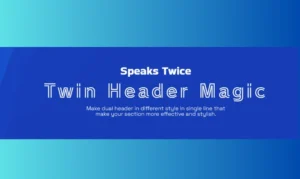
The Dual Header Widget is a powerful Elementor widget that allows you to create eye-catching headers with two distinct text elements. Perfect for creating dynamic titles, taglines, and promotional headers with different styling for each text part.
Dual Header Widgets
Key Features #
Dual Text Display Primary Header: Main heading text with full customizationSecondary Header: Complementary text with independent stylingFlexible Layout: Display texts inline or on separate lines
Advanced Styling Options #
Typography Control: Independent font settings for each textColor Options: Solid colors or gradient effectsText Effects: Stroke width and color customizationHover States: Different styling on mouse hoverBackground: Container background with gradient supportBox Shadow: Add depth with shadow effects
Responsive Design #
Alignment Control: Left, center, or right alignmentGap Control: Adjustable spacing between textsLayout Options: Switch between inline and stacked layoutsMobile Responsive: Optimized for all screen sizes
How to Use #
1. Adding the Widget
2. Content Configuration
Primary Header Section Primary Header Text : Enter your main heading text
Primary Header Section
Secondary Header Section
3. Style Customization
Box Settings
Alignment: Choose text alignment (Start/Center/End)
Gap: Control spacing between primary and secondary text (0-200px)
Background: Set container background (solid color or gradient)
Box Shadow: Add shadow effects for depth
Primary Text Styling
Typography: Font family, size, weight, line height, letter spacing
Color Type: Choose between solid color or gradient
Text Color: Set the text color
Text Gradient: Apply gradient effects (when gradient type selected)
Text Stroke: Add outline to text (0-10px width)
Stroke Color: Color for text outline
Hover Effects: Different styling when users hover over the text
Secondary Text Styling
New Line Control: Display secondary text inline or on a new line
Typography: Independent font settings
Color Options: Solid color or gradient effects
Text Effects: Stroke and hover customization
All styling options available for primary text
Use Cases
Business Headers
Primary: “Welcome to”
Secondary: “Our Company”
Marketing Messages
Blog Titles
Creative Titles
Primary: “Design”
Secondary: “Excellence”
Pro Tips
Design Best Practices
Contrast: Use contrasting colors between primary and secondary text
Hierarchy: Make primary text larger/bolder than secondary
Spacing: Use appropriate gap settings for visual balance
Gradients: Use gradients sparingly for accent effects
Performance Tips
Text Length: Keep text concise for better mobile display
Font Loading: Use web-safe fonts for faster loading
Responsive Testing: Always preview on different screen sizes
Creative Ideas
Use gradient text for modern, eye-catching effects
Apply text stroke for outlined text styles
Combine with animations for dynamic presentations
Use different font weights to create visual hierarchy
Technical Notes
Widget Name: trad-dual-header
Category: Turbo Addons
Dependencies: Requires dual-header.css stylesheet
Compatibility: Works with all Elementor themes
Browser Support: Modern browsers with CSS gradient support
Troubleshooting
Common Issues
Text Not Displaying: Check if text fields are not empty
Gradient Not Working: Ensure “Gradient” color type is selected
Responsive Issues: Use responsive controls for different screen sizes
Alignment Problems: Check container alignment settings
Try Turbo Addons Free: https://wordpress.org/plugins/turbo-addons-elementor/
Also See the you tube tutorial :
VIDEO
Support